
Guide
Best ways to search text in photos on Android
There is no single winner. The right choice depends on what you search and how private you need it to be.
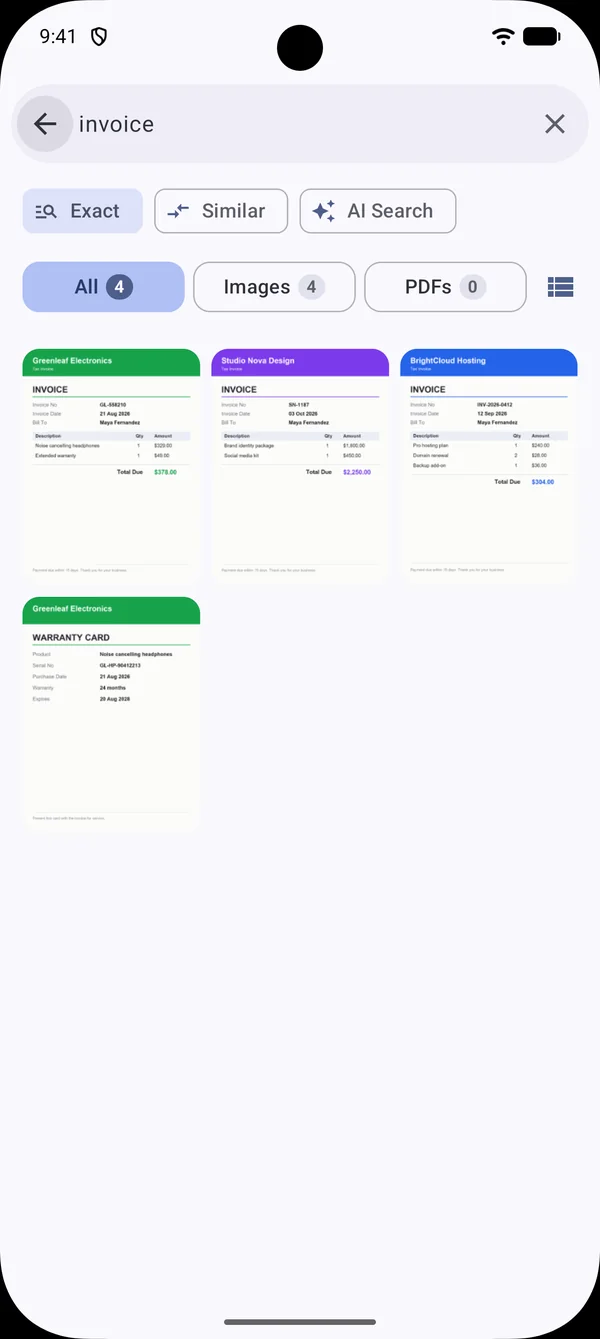
Short answer: For ordinary photos use Google Photos or your gallery. For documents, PDFs and offline, private search use a dedicated indexer such as SniffDoc. Other offline options exist, so compare what each one covers.
Updated 2026-11-26 by the SniffDoc team
Group 1: built-in and cloud
Google Photos can match words inside photos, with quotation marks for exact matches. Your phone's gallery app may offer text search on recent models. Both are convenient and free, but they are built for photos, not PDFs.
Group 2: offline document indexers
- SniffDoc reads text in photos and PDFs on the phone, searches offline, tolerates typos and adds a Vault, Share pack and PDF tools. Android only.
- Phondex lists itself as a file and OCR search app that indexes files offline, with strong Arabic and English support.
- Glyfen is an open-source offline OCR app on F-Droid that searches photos by text on the device.
Features change, so check each app's store page for current details.
How to choose
- Is the target a PDF or a scan? Choose an indexer that covers PDFs.
- Is privacy important? Prefer on-device processing.
- Do you also need to organise, shrink or sign documents? Prefer an app with those tools.
- Which languages are in your documents? Test with a few real examples.
See also: Google Photos vs SniffDoc.
Questions
Is there a free app to search text in photos?
Yes. Google Photos and several offline apps are free to use. Some, including SniffDoc, offer an optional paid upgrade for extra features.
Which option is most private?
Apps that read and index files on the phone itself, without uploading them, keep the content on your device.
Related
Ready when you are.
Install SniffDoc free on Android. It reads your photos and PDFs on your phone, so every important paper is one search away.