
Guide
How to scan a document with your phone camera
A good scan is mostly light and framing. Follow these steps and your photo will be readable by people and by text search.
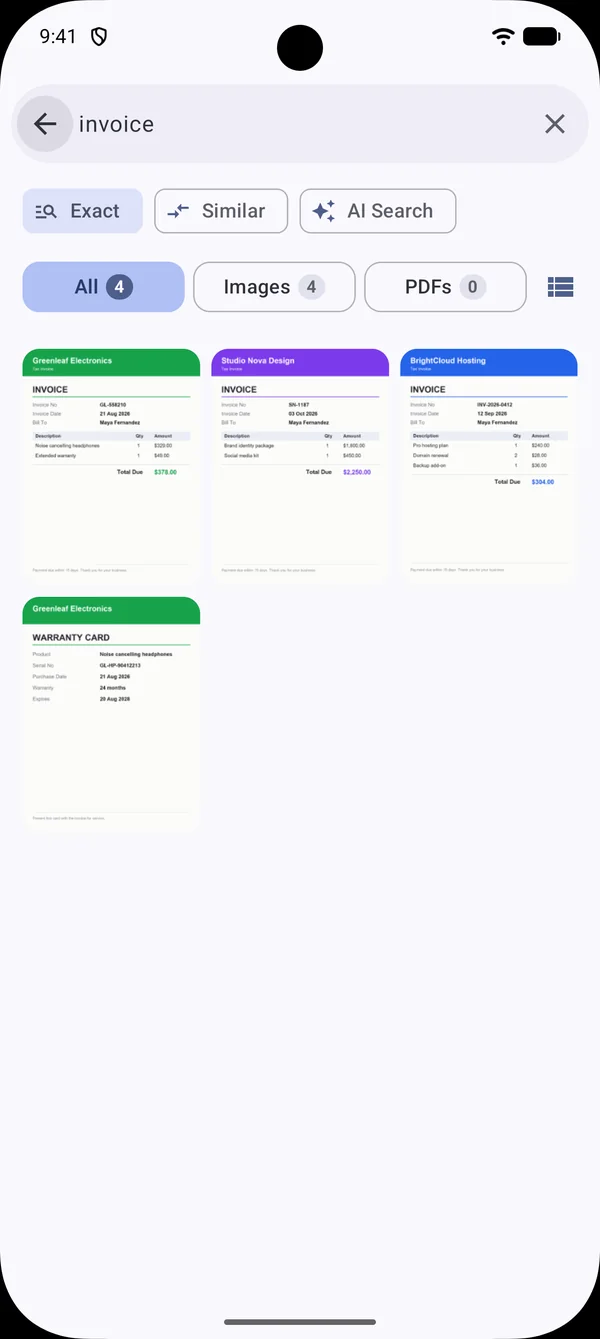
Short answer: Lay the page flat, use even light, fill the frame, adjust the corners and apply a filter that removes shadows. Then save it where you can search it.
Updated 2026-11-26 by the SniffDoc team
Before you shoot
- Place the page on a plain, darker surface.
- Use daylight or an even lamp. Avoid your own shadow and glare.
- Hold the phone parallel to the page.
In SniffDoc
- Choose Scan and file and point the camera at the page.
- SniffDoc outlines the page. Drag the corners if the outline is off.
- Pick a filter such as Auto white or No shadow.
- SniffDoc reads the page on your phone, suggests a Vault folder and fills in details it can see, such as a policy number or expiry date.
- Check the details and tap Save.
Common mistakes
- A tilted page makes text recognition fail more often.
- Flash can wash out the text. Prefer daylight.
- Cropping off the edge can cut off the number you need.
Questions
Can I scan multiple pages into one PDF?
Yes. Add the pages to a Share pack and send them as one PDF.
Does scanning upload my document?
No. Reading happens on your phone.
Related
Ready when you are.
Install SniffDoc free on Android. It reads your photos and PDFs on your phone, so every important paper is one search away.